Workspace
Symbols and tags for filtering your notes.
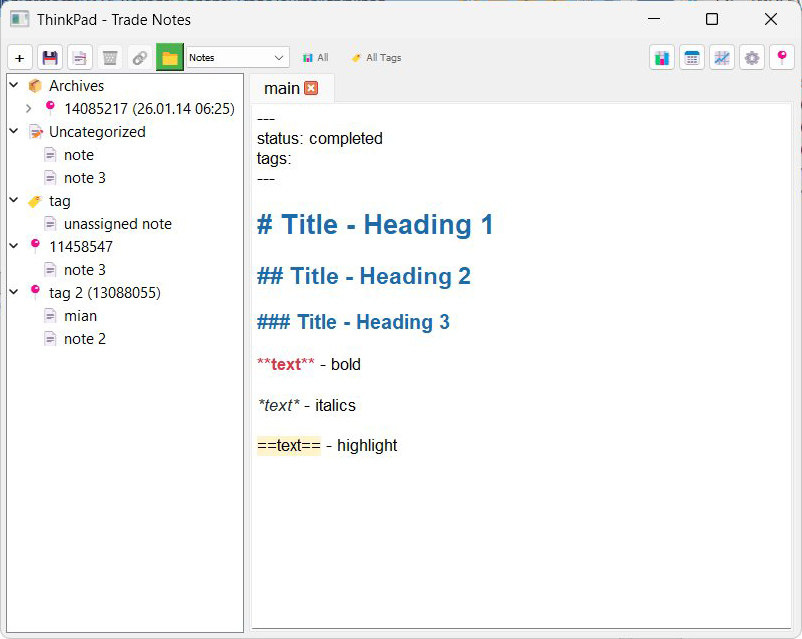
Symbols
Everything in ThinkPad is organized by trading instrument.
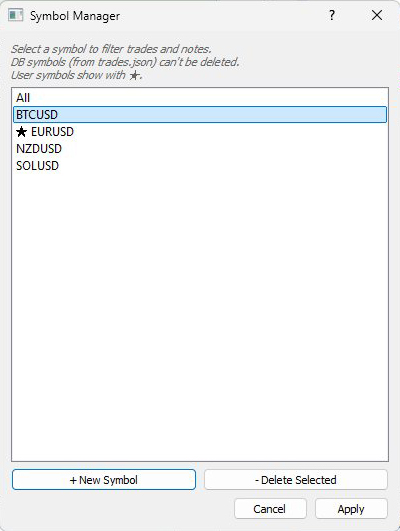
Two types of symbols exist. Database symbols are automatically detected from your trades.json file. User symbols, marked with a star, are manually added for instruments you plan to trade but haven't yet.
To add a symbol, click the All button to open Symbol Manager, then click New Symbol. Enter the symbol name and click Apply.
Filter your notes by checking or unchecking symbols in Symbol Manager. Only notes for selected symbols appear in the tree.
When you open ThinkPad, it auto-selects the current chart symbol if available.
Tags
Categorize notes by strategy, outcome, or any system you prefer.
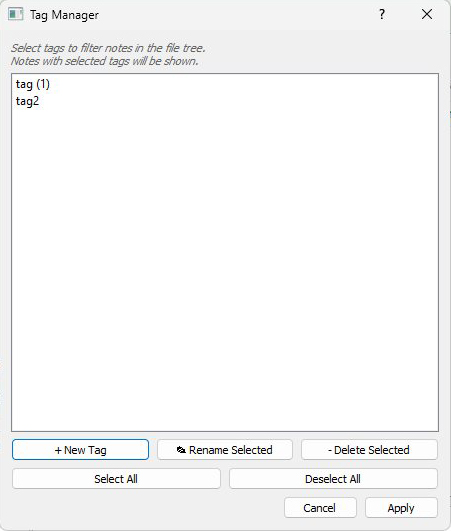
Click the All Tags button to open Tag Manager, then click New Tag. Enter a name like "breakout", "reversal", or "mistake" and click Apply.
Tags in use display a count showing how many notes reference them. Empty tags show no count.
Filter by selecting one or more tags in Tag Manager and clicking Apply. Only notes with those tags appear.
Tag strategy examples: setup types (breakout, reversal, trend), quality grades (A-setup, B-setup, mistake), or phases (planning, active, review).
Spot something off? Open an issue