Screenshots
Capture, organize, and review your chart images.
Taking Screenshots
Capture key moments during trading.
Use the Presentation Dialog in PrismChart to take screenshots at important points - entries, exits, key levels hit. Screenshots save to the PrismChart/Screenshots folder where ThinkPad automatically detects them.
Assigning to Trades
Link screenshots to specific positions.
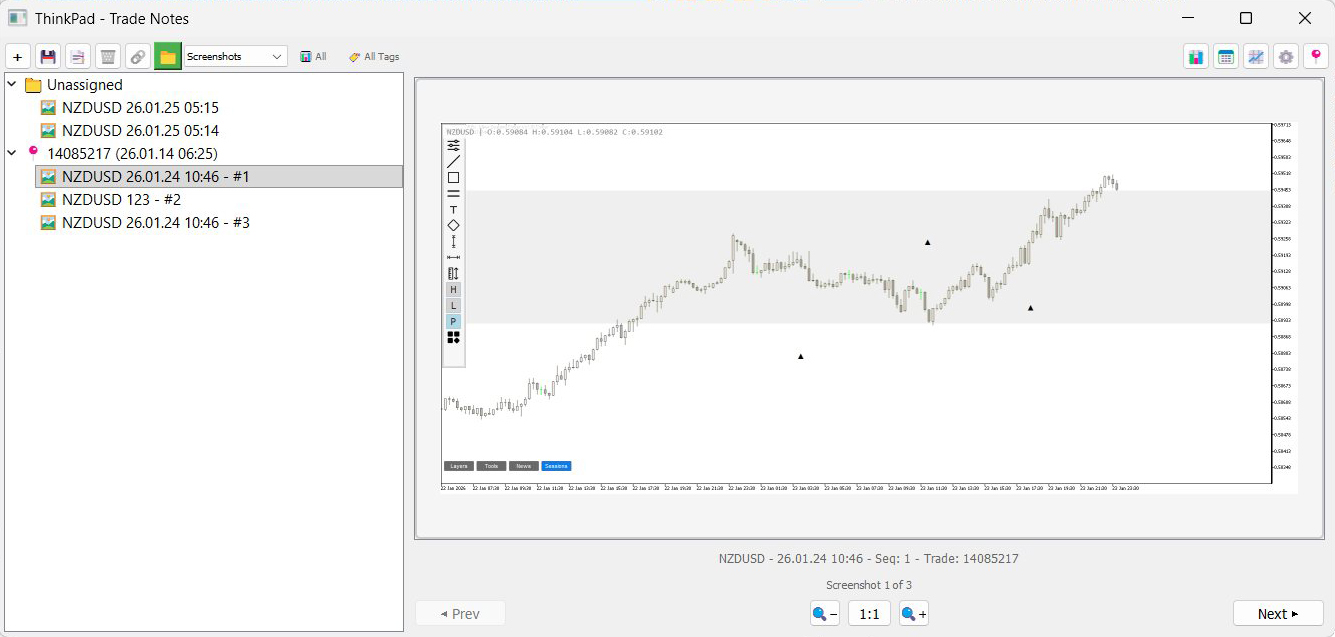
Switch the mode dropdown from Notes to Screenshots. The file tree shows an Unassigned folder with your screenshots listed by date and time.
Right-click a screenshot and select Assign to Position. The Trades Manager opens - select the matching position. Enter a sequence number when prompted (1 for first screenshot, 2 for second, and so on).
All assigned screenshots appear under their position in the tree, numbered in sequence.
Viewing Screenshots
Browse your trade documentation.
Click any screenshot under a position to open the large viewer on the right. Use the zoom controls and navigation buttons to move between images. Click and drag to pan around zoomed images.
Reordering
Fix the sequence after assignment.
Right-click any screenshot under a position and select Reorder. The dialog shows all screenshots for that position - drag them into the correct order and click Apply. Files are automatically renamed to reflect the new sequence.
Renaming
Add descriptive names instead of timestamps.
Right-click a screenshot and select Rename. Enter a descriptive name like "Breakout entry" - the symbol is preserved while the date/time is replaced with your custom name.
Rename key screenshots you reference often or when creating presentation-ready sequences.
Spot something off? Open an issue