Review Trades
Analyze closed positions with screenshots and statistics.
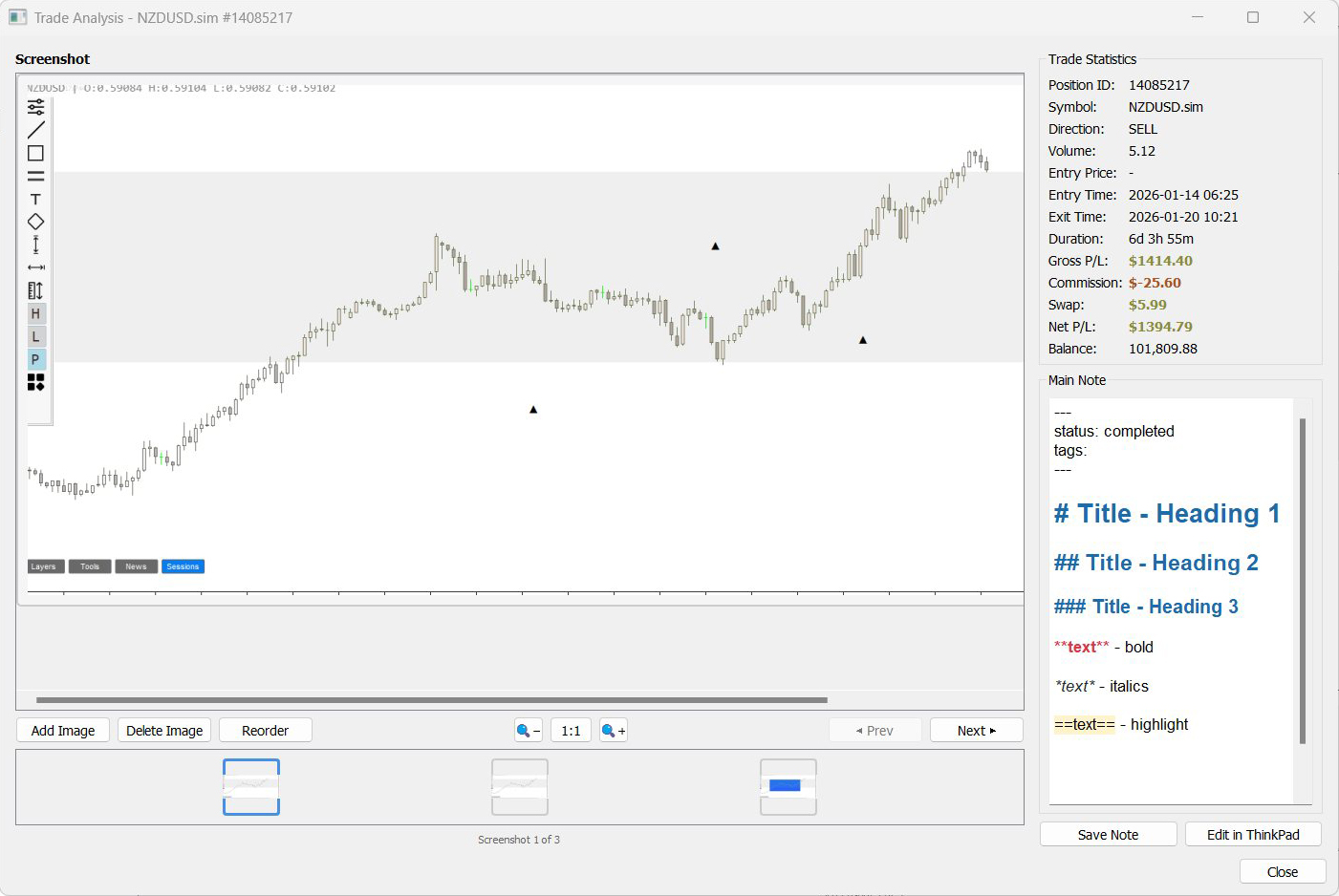
Trade Analysis View
Review everything about a completed trade in one place.
Click the Trades Manager button and find your closed trade. Click on the main trade row (not the partial exits underneath) and click View in the bottom right.
The Trade Analysis window opens with your screenshot viewer on the left, a thumbnail strip below for navigation, and complete trade statistics on the right. Your note named "main" appears here. If you edit via Trade Analysis View, a "main" note is automatically created.
Trade Statistics
Understand your execution and results.
The right panel shows position details including direction, volume, entry/exit times, and exact duration. The P/L breakdown lists gross profit, commission, swap fees, net profit, and final balance.
Green indicates profit, red indicates losses and costs. Use this to verify execution quality, calculate actual risk/reward, review holding time versus your plan, and document costs for tax records.
Editing Notes Post-Trade
Add your review while statistics are fresh.
Scroll down in the right panel to see your main note. Click in the note area to edit and add your post-trade review - what worked, what didn't, lessons learned.
Click Save Note when done, or click Edit in ThinkPad for extensive changes in the full editor.
Adding Screenshots Later
Attach images you captured after the fact.
In Trade Analysis view, click Add Image and browse to your screenshot. It's added as the last in sequence - use Reorder if you need it elsewhere.
Add screenshots of final results, equity curve snapshots, or key levels hit for future reference.
Spot something off? Open an issue