Trade Notes
Document your analysis and track trades.
Quick Note Creation
Start documenting a setup as it forms.
Click the plus button in the toolbar. A new untitled note opens in the editor where you can write your analysis - market context, entry plan, stops and targets.
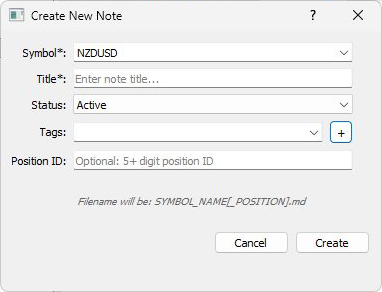
Press Save and the Create New Note dialog appears. Fill in the symbol, title, and set status to Active. Optionally select tags and leave Position ID empty for now - you can assign it after the trade opens.
Click Create and the note appears in your file tree, ready to track this trade.
Assigning Notes to Trades
Link notes to actual positions.
Once you enter a trade and MT5 assigns a position ID, right-click your note in the tree and select Assign to Position. The Trades Manager opens showing all positions. Select the matching position and your note moves under that position ID in the tree.
You can also enter the position ID directly when creating the note if you already know it.
Create multiple notes for one position - entry reflection, exit notes, lessons learned. All notes with the same position ID nest together. Name your primary analysis note "main" - this is the note that appears in Trade Analysis view when reviewing closed trades.
Archiving Notes
Move completed trades out of your active workspace.
Change the status in the note's frontmatter from active to completed and save. The note automatically moves to the Archives folder.
Alternatively, right-click the note, select Rename, change the Status dropdown to Completed, and click OK.
Archived trades remain searchable and viewable but stay separate from your active analysis.
Spot something off? Open an issue